
- Home
- General
- Getting Started
- Create a Project on DIY Website Builder
Create a Project on DIY Website Builder
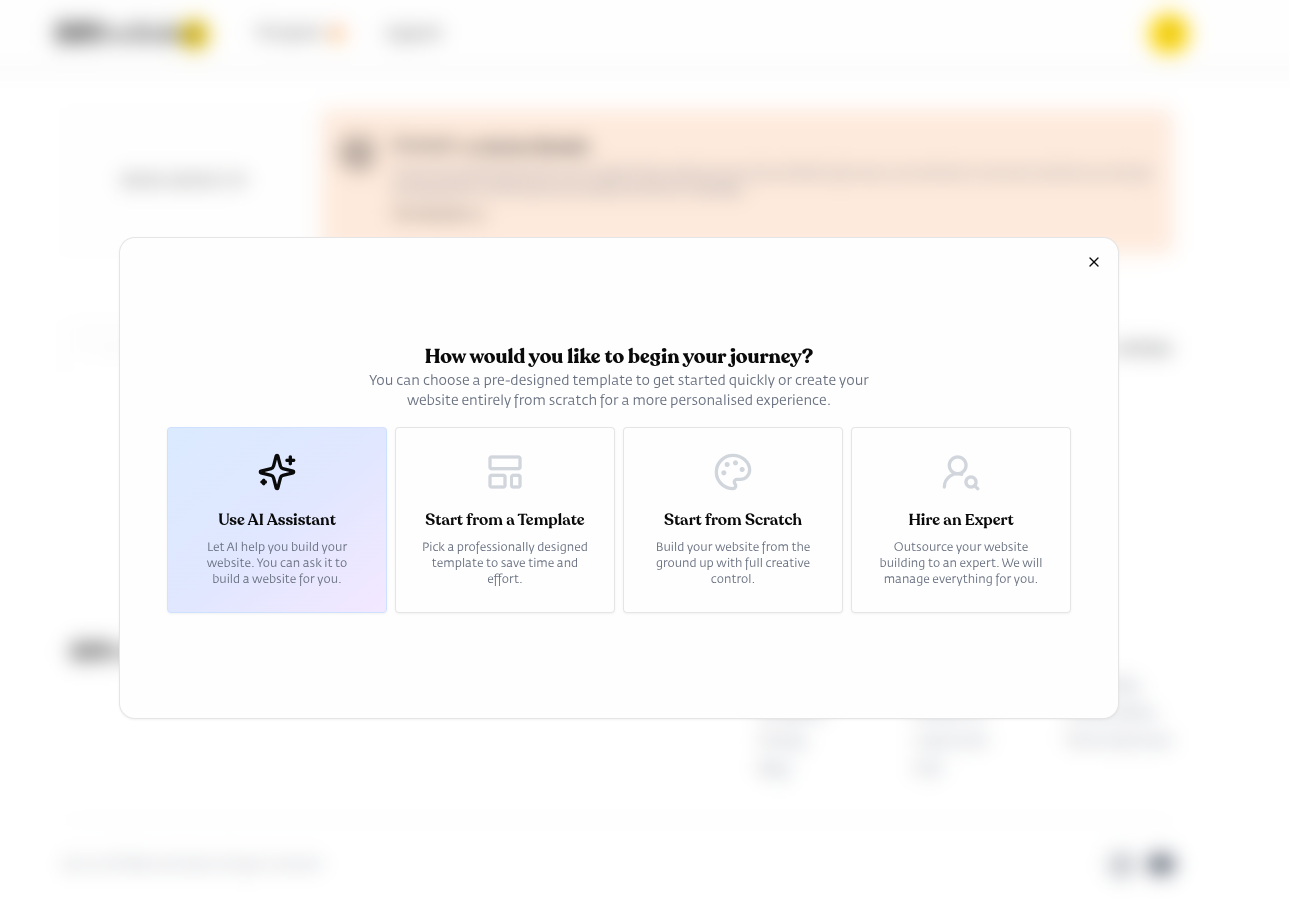
When starting a new project in DIY Website Builder, you have four options:
Create With AI: Use AI Assistant
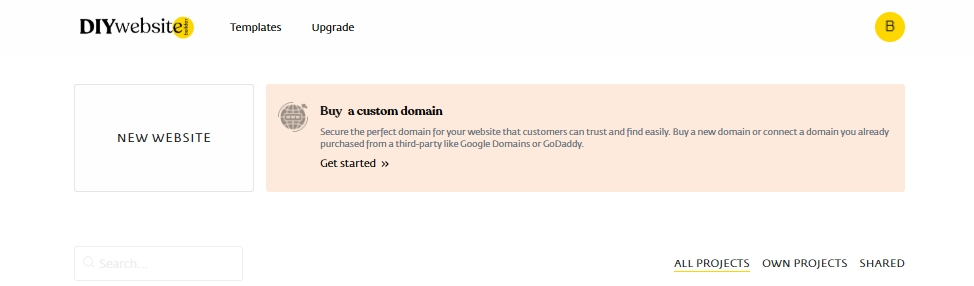
1. Click on the "New Website" button.
2. On the pop-up window, click on the "Use AI Assistant" button.
3. Enter your project details in the provided field and submit to let the AI design your website.
Create New Website: Start with a blank canvas and build from scratch
1. Click on the "New Website" button.
2. On the pop-up window, click on the "Start from Scratch" button.
Create from Template: Choose from pre-designed templates to customize, saving you time and effort
1. Click on the "New Website" button.
2. On the pop-up window, click on the "Start from Template" button.
3. Browse through the template categories.
4. Select a template that best matches your vision.
Hire an Expert: Outsource your website building to an expert. We will manage everything for you.
1. Click on the "New Website" button.
2. On the pop-up window, click on the "Hire an Expert" button.
Both options appear after clicking the "New Website" button, allowing you to begin with a completely blank canvas or jumpstart your design with a professionally created template.
- Related Articles
- Create your DIY Website Builder Account
- Understanding the Editor Interface
- Customizing Your Design
- Previewing Your Design on Different Devices
- Adding a New Page in Your Project
- Deploying Your Website
- Deleting Your Website
Still Need Help?
If you have any further questions or require additional
assistance, please don't hesitate to reach out to our support
team.